Help
Most problems that are encountered can be solved by refreshing the page, selecting "Delete Data Cache" from the Map Settings dropdown in the menu, or logging out via the Account page, and logging in again. This includes problems with data caching, and staying logged in when your session closes.
If logging out does not fix your problems, delete your data cache from the Map Settings in the Menu on the Home Page. If that still does not help, please try clearing your browser's history, or the site storage for Churchmaps.net through your browser settings.
Also feel free to contact me from the Support Page.
Using The Map
Once you are signed in and open the map, it will display all the congregations that are available.
To open a congregation either select it on the map, or search for it in the Search bar on the top, select it in the list that drops down, and choose Open Map on the popup that opens.
Once you have opened a congregation, you can select any name on the map, or search for it in the Search bar on the top, then select it in the list that drops down. This will will then give you the options to get directions to that location.
Navigation is provided by other websites, or apps, depending on your device.
Main Search Bar

The Menu Button on the left hand side will open the menu when viewing the main map. This will turn into a back arrow when viewing a congregation, and can be used to navigate back to the main map. The menu is not available when viewing a congregation.
The Search bar will search for congregations when on the main map, and search within the current congregation or congregations when viewing a congregation or congregation group.
Map Controls
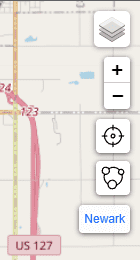
The icons on the right side of the map are for the following functions:
- Layer Switcher
- Zoom Control
- Geolocation Control
- Congregation Group Viewer
- Congregation Color Index
The Congregation Group Viewer button will only be visible if you are viewing a congregation that is part of a group.
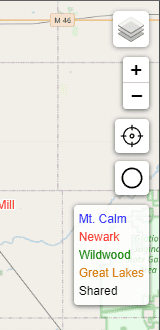
When viewing a congregation group, the icon in the Group Viewer button will change and it will provide navigation back to the previous congregation that you were viewing.
Menu Items
Map Settings
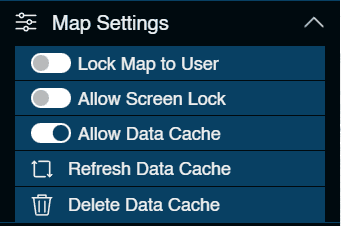
These settings are for controlling some map features, and also the data that is stored on your device.
Lock Map to User
This option will force the map to stay centered on on your location, while you are showing it on the map. If you are not showing your location on the map, it has no effect.
This setting is off by default.
Allow Screen Lock
This option will force your screen to stay on while you are using the geolocate feature and showing your location on the map. If you are not showing your location on the map, it will do nothing. This feature is missing from many browsers so it may be disabled on your device.
This setting is off by default.
Allow Data Caching
This option allows this site to store some data on your device.
The site stores all the resources for the most commonly used pages, along with congregation data, and map tiles.
Once you view a congregation, it is stored until you log out, clear your cached data, or it is refreshed.
Once you view an area on the map the tiles for that area are stored until you log out, clear your cached data, or view enough other areas that the storage reaches the max number of tiles, at which point the oldest will be deleted first.
This allows you to continue to use the website in areas with poor or no service, to decrease data usage, and speed up the user experiance.
If you are in a area with poor or no service, you will not be able to view congregations or areas that you have not veiwed before.
This setting is on by default.
Refresh Cached Data
This option will check for any updates to the saved congregations and will reload them the next time they are opened. This is also be done automatically each time the page is refreshed.
Delete Cached Data
This option will delete all of the data that is stored on your device. This includes cached pages and resources, cached congregations, and map tiles.
Account
To log out of your account, go to the Account Page, and select Logout from the menu. You can also change your email address, and account password on this page.